AI Lip Sync Generator
Make Your Photo Speak with AI
Turn a still portrait into a talking video with AI lip sync. Upload an image, add your own audio recording or enter a script, and generate facial movement that follows the spoken words. Create speaking characters for social videos, product ads, educational content, branded messages, and creative storytelling — without filming a new performance.
Need a broader avatar workflow? Explore Topview AI Avatar.
AI Lip Sync
Source Image
What Should Your Character Say?
Choose an available voice (for Text to Audio)
What Is AI Lip Sync?
AI lip sync uses artificial intelligence to generate mouth movements that follow spoken audio. In a photo-based workflow, the starting image provides the face and visual identity, while the audio or text-to-speech track provides the words to be delivered.
With Topview, you can start from an existing photo and either import a voice recording or create speech from written text.
Make a Photo Talk
Start with a single image of a person or character. AI creates a speaking performance from that still visual reference.
Turn a Script into Spoken Video
Enter a script, choose an available AI voiceover, and generate a lip-synced video without recording that narration yourself.
Match Mouth Movement to Audio
Import a recorded voice track to guide the character's spoken delivery and visible articulation.
Create More Than One Message
Use the same approved portrait as a starting reference for different scripts, voiceovers, or language versions. Review each generated result for consistency.
Lip sync aligns visible speech with audio. Translation, voice cloning, and advanced avatar direction are separate capabilities or settings, where supported.
Create AI Lip Sync from a Photo in 3 Steps
You don't need a source video. Start with one portrait, then add audio or a script to create a talking clip.
Upload Your Photo
Choose a portrait of the person or character you want to speak.
For a clearer starting reference, use an image where:
- One face is easy to identify and reasonably large in the frame.
- The eyes, nose, and mouth are visible and unobstructed.
- Lighting is even enough to distinguish facial details.
- The face is front-facing or only moderately turned.
- The image is sharp rather than heavily blurred or distorted.
Check the current generator for supported image formats, dimensions, and upload limits. Do not assume that video-upload specifications apply to photos.
Import Audio or Add a Script
Choose the speech input that fits your project.
Option A. Import Audio:
Upload an authorized voice recording or prepared dialogue track. Use it when pronunciation, vocal performance, and timing are important.
Option B. Text to Audio:
Enter the words you want spoken and select an available AI voice. Review the generated speech when an audio preview is offered.
Generate and Review Your AI Lip Sync Video
Click Generate to process your photo and speech. Preview the result and compare the mouth movements with the audio. Focus on consonants, pauses, facial transitions, and the beginning and end of each line.
If a section looks unnatural, try a cleaner audio recording, a shorter line, or a source photo with a clearer view of the face.
AI Lip Sync Result Comparison
See How AI Lip Sync Brings a Photo to Life
The simplest way to evaluate photo-based AI lip sync is to compare the original still image, the target speech, and the finished talking video.
Original Image
Before — Source Portrait
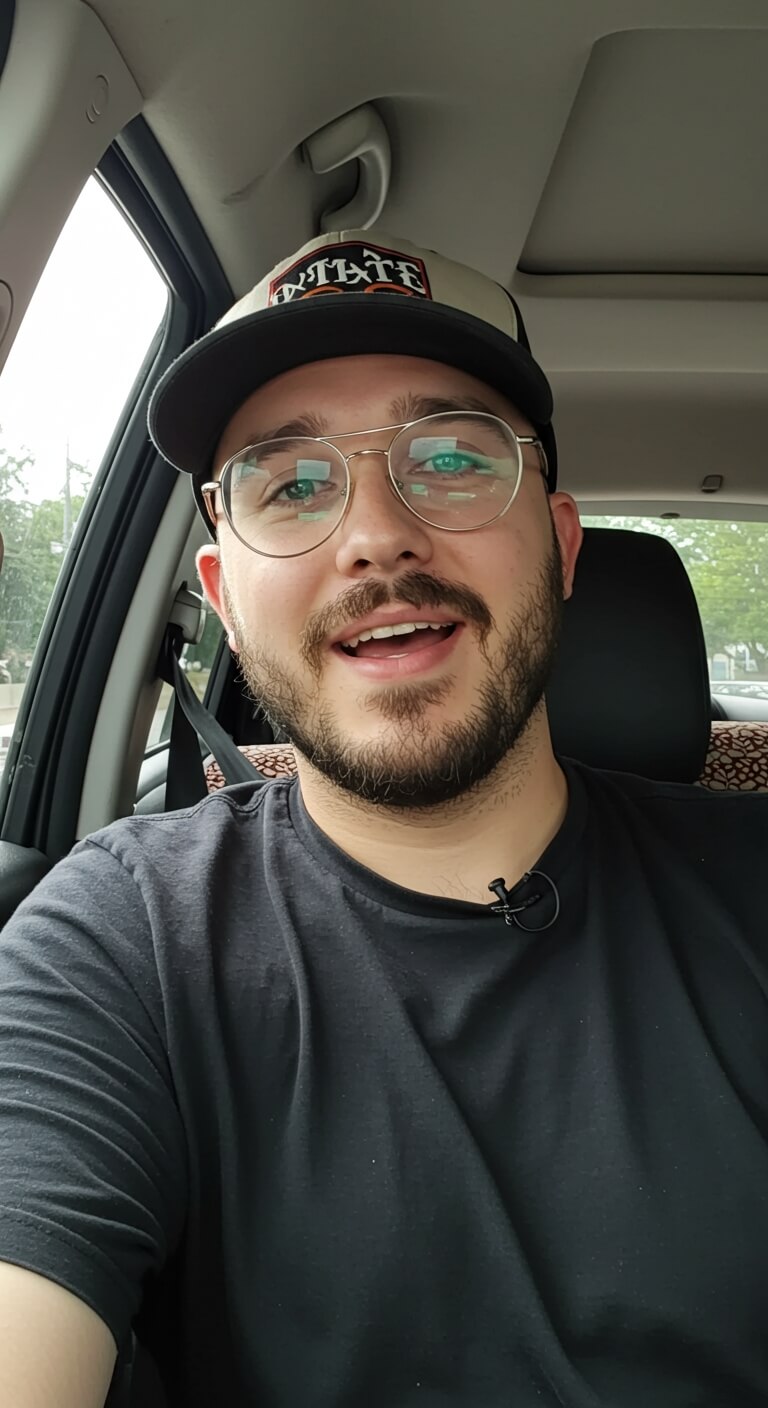
This is the image used as the visual starting point. Check the person's face, hairstyle, clothing, and other identifying details.
Target Speech
Audio Recording or AI Voiceover
Listen to the line the animated character is intended to say.
Generated Result
After — AI Lip Sync Video
Watch how the still portrait becomes a speaking clip. Compare mouth movement with the audio and facial appearance with the source photo.
What Should You Check?
Speech Timing
Do the lips move in time with words, pauses, and changes in speech?
Mouth Shapes
Do prominent sounds such as "p," "b," and "m" look plausible?
Facial Continuity
Does the mouth blend naturally with the surrounding face?
Character Identity
Does the generated person remain recognizable from the source portrait?
Overall Viewing Quality
Does the result still look convincing when played at normal speed, with sound enabled?
AI lip sync results vary with portrait quality, speech input, model choice, and the complexity of the requested delivery.
AI Lip Sync from a Script or Voice Recording
Different projects require different audio inputs. Prepare speech with Topview AI voiceover, or use the two options below for a lip-synced video.
Lip Sync with Your Own Audio
Import a recording when you want to use a specific performance, voice, accent, or speaking style.
This works well for edited narration, approved spokesperson recordings, and prepared dialogue.
A clean recording gives you more control over pronunciation and timing before video generation.
Lip Sync with AI Voiceover
If you only have a script, use Text to Audio to prepare a spoken version.
Choose an available voice and review the result.
You can use this workflow for short messages, product explanations, announcements, and other spoken content.
Which Input Should You Choose?
Choose imported audio when:
- The voice has already been recorded.
- A specific vocal performance matters.
- You want to preserve the timing of a prepared dialogue line.
- You have a reviewed recording in another language.
Choose Text to Audio when:
- You have written copy but no recording.
- You want to test several short lines.
- You need an initial voiceover for a talking portrait.
- You want to compare several script variations.
USE CASE
What Can You Make with AI Lip Sync?
AI lip sync can turn a still character or presenter image into multiple spoken videos. It is especially useful when you need a talking visual but do not have existing footage to edit.
Talking Character Dialogue
Make a Still Character Deliver a Spoken Line
Start with a character portrait, add a dialogue recording or script, and create a new talking shot. This is useful for concept scenes, character introductions, or alternate spoken lines. Review the generated performance for both lip timing and character appearance.
AI Dubbing and Localization
Create Language Versions from One Portrait
Prepare translated, approved speech in the target language and generate a new talking video using the same portrait. Lip sync itself does not translate the words; script translation and voice preparation are separate steps.
Product Ads and Ecommerce
Update Your Product Message
Start with an authorized presenter or character image. Add a product benefit, offer, or short call to action. Generate variations without needing a new camera shoot for each spoken message.
Social Media Talking Videos
Create Short Talking Clips from a Portrait
Use a portrait and a brief script to produce introductions, commentary, creative hooks, or creator-style messages. Check framing and readable facial details for mobile-first viewing.
Training and Educational Videos
Present Lessons with a Talking Character
Turn an approved trainer or illustrative character image into an explanation video. Review instructional accuracy, terminology, and spoken pronunciation before sharing.
Presenter and Brand Messaging
Keep a Recognizable Visual Presenter Across Messages
Use a licensed or approved portrait as a repeatable starting reference for announcements, updates, and FAQs. Generate and review each new performance instead of assuming all versions will look identical.
AI Lip Sync for Film & Drama Dialogue
Turn Character Portraits into Spoken Scenes
Create a speaking shot from a film or drama character image, then add recorded dialogue or a script. Review the new facial performance for timing, emotion, and visual continuity before using it in a wider story sequence.
Explore AI Drama CreationExplore AI Film CreationCreate AI Short DramaCreate Drama Series
How to Make AI Lip Sync Look More Natural
Photo-to-video lip sync quality depends on the source portrait and the speech input. These steps can improve your chances of a usable result.
Use a Clear Portrait with a Visible Face
Choose a sharp image with an unobstructed mouth, defined facial features, and reasonably even lighting. A single, clearly visible face is a useful starting point.
Start with Clean Audio
Use speech with minimal background noise, overlapping voices, or distortion. If the recording includes music or several speakers, prepare a cleaner voice track when possible.
Keep Timing Realistic
Use lines that fit the intended clip length and delivery. A very long sentence can be harder to present naturally in a short talking animation.
Test Short Sections First
Start with a brief line when evaluating a new speaker, camera angle, or voice. Review the result before creating longer content.
Watch at Normal Speed
Check whether speech feels natural during ordinary playback rather than relying only on individual frames.
Pay Attention to Facial Detail
Review teeth, jaw movement, expression changes, and the area around the mouth. AI-generated results can introduce visual artifacts and may need another generation attempt.
Use Images and Voices You Have Permission to Use
Only upload portraits and recordings you own or are authorized to use. Do not make a real person appear to say something misleading or unauthorized; use appropriate disclosure where needed.
Photo-Based AI Lip Sync vs. Video Lip Sync
AI lip sync for existing footage and talking photo generation are related but different workflows.
Photo-Based AI Lip Sync
Start with a still portrait or character image.
Add a script or recorded audio. AI generates new facial movement and a talking video.
Best for: Talking photos, virtual presenters, character introductions, educational clips, product messages, and dialogue shots created from still images.
Video Lip Sync
Start with existing moving footage and add replacement audio. The system changes visible mouth movements in a video that already contains performance and camera motion.
Best for: Modifying dialogue in recorded footage or adjusting speech to a separate voice track, where a video-input tool is available.
For additional avatar creation features and settings, see Topview AI Avatar.
Explore AI Avatar GeneratorHow Much Does AI Lip Sync Cost?
AI lip sync generation uses Topview's credit-based workflow. The credits required can vary with the selected model, generated duration, and account plan.
Before generating, review the options and estimated credit usage shown in the product interface.
For a longer project, test one short line using your selected portrait and speech input before producing multiple talking videos.
Why Choose an AI Lip Sync Video Generator
Practical AI lip sync for marketers, creators, and teams
AI Lip Sync Powered by Avatar4 Model
Avatar4 helps align visible mouth movement with speech for photo-based talking videos. Review each result for timing and facial consistency.
Photo & Video Lip Sync Support
Start from a portrait to create a talking clip, or use related video lip-sync workflows where available — one Topview toolkit for related speech-sync needs.
AI Lip Sync in Multiple Languages
Generate talking videos for additional languages when you supply target-language audio or a supported voice option. Coverage depends on the voices and inputs available in the product.
AI Lip Sync Voice Options
Use an available AI voice or an authorized recording. Voice cloning, where offered, requires appropriate rights and settings.
AI Lip Sync Videos Without a New Shoot
Produce short talking clips without filming a new performance for every line. Generation time varies with model, duration, and queue load.
Commercial Use Depends on Your Plan
Commercial use depends on your Topview plan, applicable terms, and your rights to the portrait, voice, likeness, and other materials.
Who Uses AI Lip Sync Technology
From marketers to educators, AI lip sync transforms how professionals create video content
AI Lip Sync for Marketing Professionals
Produce high-volume video content for social campaigns and product launches. Create dozens of variations for A/B testing.
AI Lip Sync for Ecommerce Sellers
Create product demos and testimonials at scale. Build buyer trust with realistic presenters explaining benefits.
AI Lip Sync for Educators & Trainers
Deliver lessons in multiple languages from a single recording. Reach global audiences without reshooting.
AI Lip Sync for Content Creators
Produce viral content quickly and maintain consistent posting schedules without traditional production constraints.
Can AI Lip Sync Work with Different Languages?
AI lip sync can be useful when creating a new spoken version of a video in another language. The workflow begins with appropriate target-language audio or a script converted into speech.
For example, a creator may start with one authorized presenter portrait and prepare English and Spanish scripts for separate talking clips.
Prepare the Localized Script
Translate and review the original message for accuracy and natural phrasing.
Create or Import the Audio
Use a supported voiceover option or upload an approved recording in the intended language.
Generate from the Same Portrait
Use the portrait as the visual starting point and produce a talking video for the localized speech.
Check the Result
Check pronunciation, speaking pace, lip synchronization, visual identity, and whether the message is appropriate for the audience.
Lip sync does not automatically translate content or guarantee equal quality across languages. Available language and voice choices depend on the selected workflow.
AI Lip Sync Frequently Asked Questions
Can I use my own audio recording?
Yes. The generator includes an Import Audio option for supplying your own target speech.
Can AI lip sync handle multiple speakers?
Results depend on the model, source footage, and the visibility of each speaker. For predictable testing, begin with one clearly visible speaking face and review the output before attempting more complex footage.
How do I improve lip sync accuracy?
Use footage with a clear face, prepare clean speech audio, keep the line length appropriate for the clip, and review the generated mouth movements. A different recording or video shot may improve the result.
How long does AI lip sync generation take?
Processing time varies with video duration, model choice, and current generation demand. Review the status shown in the product interface.
Can I download my AI lip sync video?
The product workflow includes result preview and download options. Available output settings may depend on your account and generation mode.
Can I use AI lip sync videos commercially?
Commercial use depends on your Topview plan, applicable terms, and your rights to the source footage, voice, likeness, and other materials. Make sure the content is authorized for its intended use.
Is AI lip sync the same as AI voice cloning?
No. AI lip sync adjusts visible mouth movements to correspond to speech. Voice cloning creates or imitates a voice and is a separate process that requires appropriate authorization.
What types of content are best for AI lip-sync videos?
AI lip-sync videos are ideal for a wide range of content, including marketing ads, explainer videos, e-learning modules, social media shorts, and virtual presentations. They are perfect for delivering clear messages effectively and engagingly, making versatile lip sync videos accessible for various uses.
Turn Your Photo into a Talking Video
Change the Words. Keep the Face.
Use AI lip sync to make a still portrait speak — updated dialogue, localized voiceovers, product messages, and creative clips. Generate new mouth movements that follow the speech.