The Visual Direction
A premium black smartwatch appears against a dark textured background. The lighting reveals the product's shape while the camera moves slowly toward it.
Turn Your Message into a Video People Can Read
Create AI videos with on-screen text that communicates your message, even when viewers watch without sound. Start with a headline, product benefit, or short creative script. Describe the text you want viewers to see, add optional visual references, and generate a video that brings your message into the scene.
Topview's AI Subtitle Generator creates videos with visible text based on your creative instructions. You provide the message and describe the video. AI uses your prompt and any selected references to generate a visual result that includes on-screen wording.
This approach is useful when you have a headline, promotional message, or short story moment but have not yet created the video.
Enter the headline, hook, product message, or creative text you want to appear. Describe the environment, subject, camera movement, and visual style that should accompany your message. Then preview the video and check the text for spelling, legibility, placement, and clarity. If the wording or composition does not work, revise your prompt and generate another version.
Important: This workflow produces generated video with visible text. It is not automatic speech-to-text captioning and does not create a timed SRT or VTT subtitle file.
You can create a video with visible text in four steps.
Step 1.
Start with one clear message.
For a product video, this might be a benefit, tagline, or call to action.
For a creative video, it might be an opening title, a short narrative line, or a dramatic reveal.
Example Message: Made for Every Moment.
Step 2.
Tell the AI what should appear in the video and how the message fits the scene.
Include useful visual details such as lighting, location, camera movement, and overall mood.
Example Prompt: Create a premium product video of a black smartwatch resting on a dark stone surface. Use cinematic lighting and a slow camera push-in. Display the words "Made for Every Moment" clearly in the composition.
Step 3.
If you have a product photograph or other visual reference, add it to help communicate the intended subject or aesthetic.
Choose the aspect ratio, duration, and resolution available in the selected generation workflow.
Use portrait orientation for mobile-first vertical content or landscape orientation when creating horizontal video.
Step 4.
Generate the video and review it at the size your audience will use.
Check that the text is readable, spelled correctly, and not hidden by important visual elements.
If the text is distorted or the composition needs improvement, revise the prompt and try another version.
Example Creative Workflow
A short message can become the starting point for a visual video concept.
Consider this example for a fictional watch brand.
A premium black smartwatch appears against a dark textured background. The lighting reveals the product's shape while the camera moves slowly toward it.
Create a cinematic product video featuring a minimalist black smartwatch. Begin with a close-up of the watch face and reveal the full product with smooth camera movement. Use a black and charcoal color palette with subtle highlights. Display "Made for Every Moment" as the main on-screen message.
Made for Every Moment.
Once you have generated a clip, review the output before publishing it.
Are the words spelled correctly, with the intended capitalization and punctuation?
Can viewers read the message without pausing the video?
Does the text stand apart from the background?
Is the headline positioned where it does not obstruct the product?
Do the text, product, and visual movement work together?
This is an illustrative prompt example. Actual generated results may vary and should be reviewed before publishing.
Create videos with short on-screen messages for marketing, social content, product storytelling, and creative projects. This workflow is especially useful when the text itself is part of the visual concept.
Product Ads
Create a promotional clip around a product benefit or headline.
Use text to communicate what makes the product distinctive, supported by product images and visual motion.
Example Message: Everyday Power. Effortless Style.
Social Media Videos
Introduce the topic with a short visual hook that viewers can understand before turning on the sound.
Use a portrait layout when the content is designed for mobile-first platforms.
Example Message: Three Details You Missed.
Ecommerce Promotions
Turn a product image and concise selling point into a promotional video concept.
Check that the product remains recognizable and the message is easy to read.
Example Message: Designed for Life on the Move.
Brand Announcements
Create videos featuring a launch message, announcement, or brand statement.
Use typography as one element of the creative direction.
Example Message: A New Chapter Begins.
Explainer and Educational Clips
Use short text to establish the subject or highlight a key concept.
For videos that contain spoken instruction, use a dedicated captioning workflow when accurate dialogue subtitles are required.
Example Message: How Solar Panels Work.
Creative Storytelling and Short Drama
Add a short message, scene title, or narrative clue to a generated dramatic sequence.
Keep the wording connected to the action rather than filling the screen with long paragraphs.
Example Message: She Was Never Missing.
Readable on-screen text depends on wording, composition, and how the final video appears to viewers.
Use one central idea for each visual moment.
Short text is generally easier to understand quickly than a long paragraph.
Choose a visual direction that separates the text from the background.
Busy patterns and bright moving elements can make important words difficult to see.
Keep key subjects and visual details clear.
For vertical videos, consider where platform controls, descriptions, and other interface elements may appear.
AI-generated text can be imperfect.
Always verify the spelling, punctuation, visual quality, and legibility of the final output.
A headline that looks readable on a desktop monitor may appear too small on a phone.
Preview the result at a realistic viewing size before publishing.
On-screen text and automatic subtitles serve different purposes. On-screen text is planned as part of a video's visual composition. It can present a title, headline, warning, or promotional message. Automatic subtitles are generated from spoken audio and synchronized with the video's dialogue or narration. Closed captions can also include meaningful non-speech sounds and speaker information.
Topview's workflow on this page focuses on generating video with visible on-screen text. It does not automatically create timed captions from uploaded speech.
A useful prompt tells the AI what words to display and how those words should work with the visual scene.
Include four details:
Create a vertical video of wireless headphones on a reflective black surface. Use soft studio lighting and subtle camera movement. Display the headline "Hear Every Detail" clearly, with a clean composition and generous space around the words.
Create a vertical social video showing a creator opening a mysterious package. Use a bright studio setting and quick visual movement. Show "Wait Until You See This" as the opening on-screen message.
Create a cinematic nighttime scene outside an abandoned mansion. A woman approaches the locked gate as distant lights flicker. Display "The Secret Was Never Buried" as a dramatic on-screen title.
These prompts communicate the intended result. Always verify the generated text rather than assuming the model will reproduce every word exactly.
Do not wait to film a finished cut, then auto-caption it in CapCut. Write the hook and selling point viewers should read on mute, attach a product still, reference clip, or audio if you have one, and set ratio, duration, and resolution. This AI video subtitle generator path is prompt-to-clip—not upload-and-transcribe.
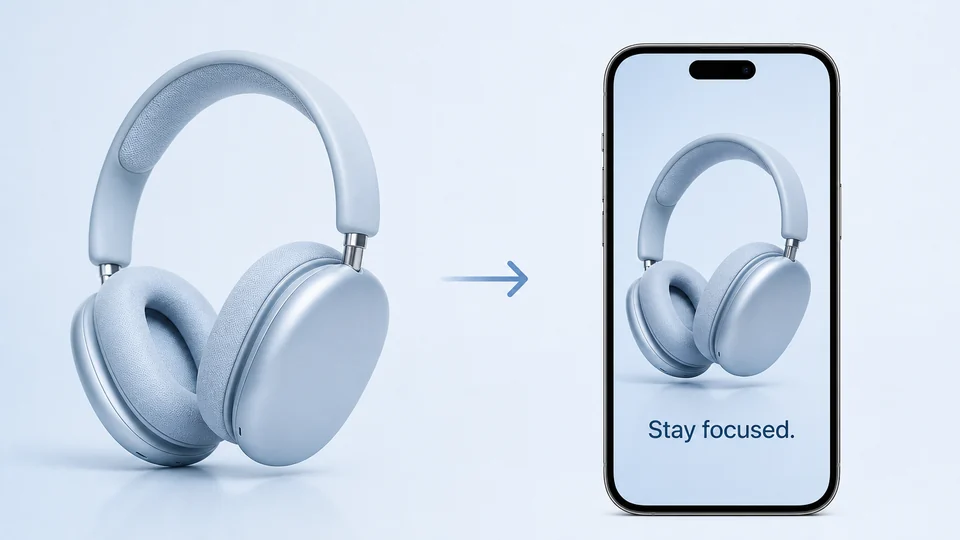
On mute autoplay, the words are the retention device. Put short, high-contrast selling lines in the prompt and generate until they read clean on a phone. Topview makes the hook visible—it does not transcribe voiceover onto a timeline.
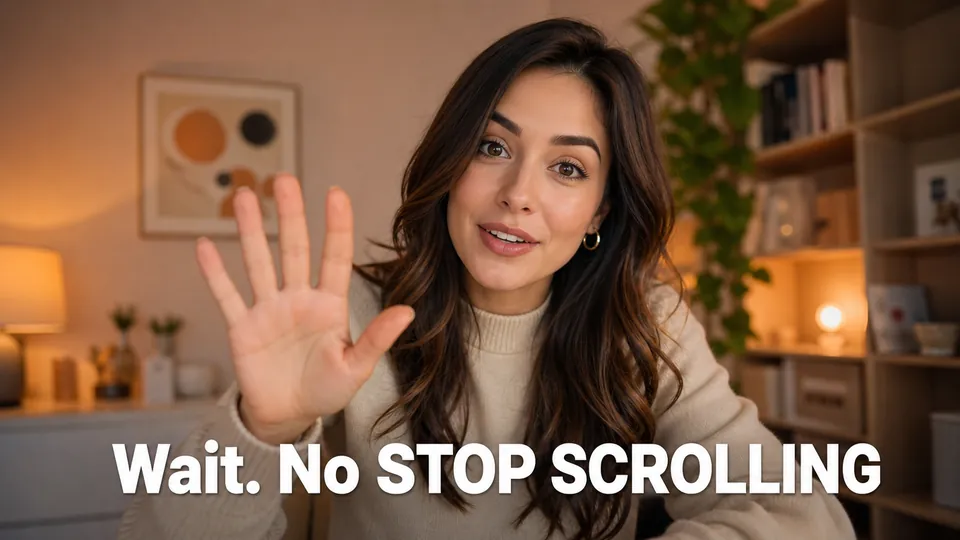
People search an AI closed caption generator when they want “I can follow with sound off.” Topview puts wording and pacing in the prompt and generates a readable clip. What you get is burned-in on-screen text—not a YouTube-style CC track or an SRT file.
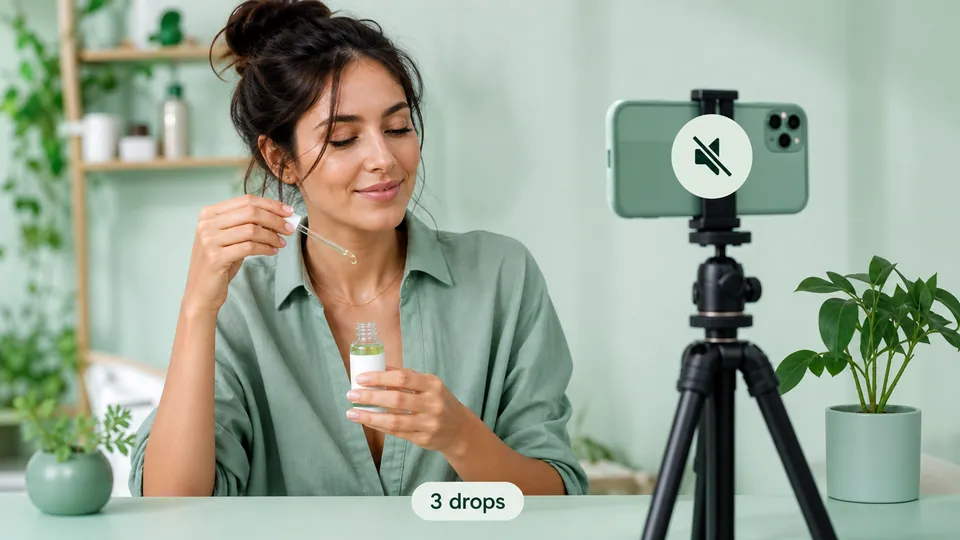
When the look is right, download a post-ready clip with the on-screen sentence, or continue in Topview Canvas. This page ships a burned-in clip for TikTok, Douyin, and Reels—it does not export SRT or a standalone subtitle file.
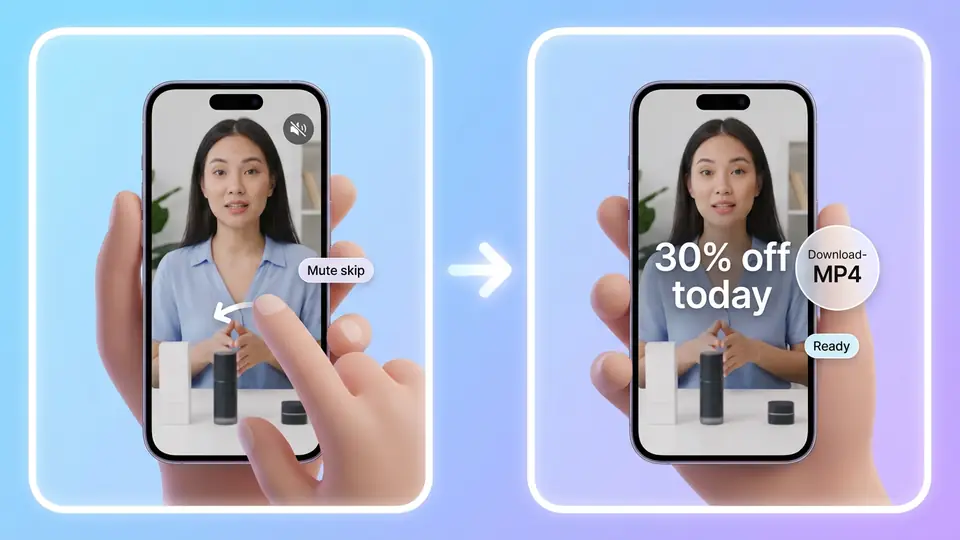
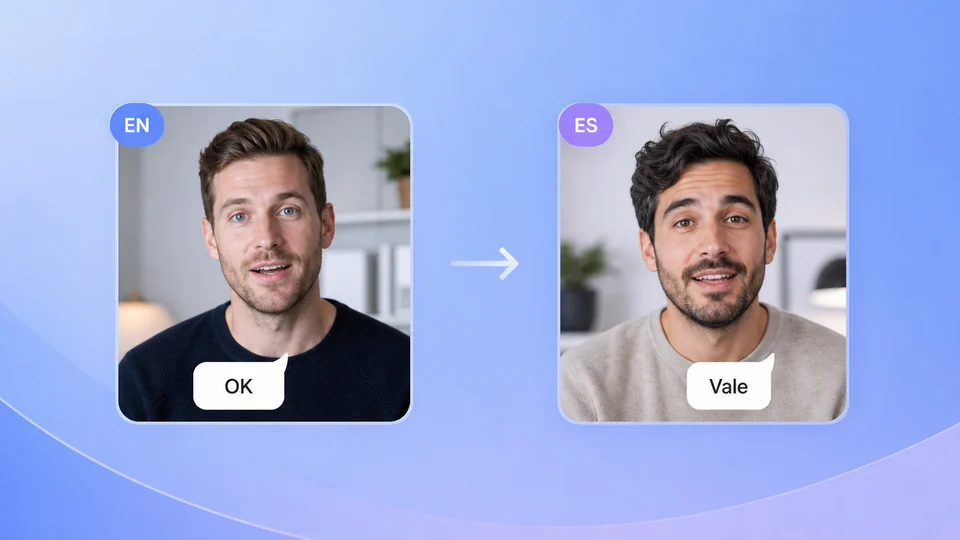
Need clearer on-screen text in the original language? Stay here and write the selling line, then generate. Need the whole clip in another language with a local voiceover? Open the multilingual AI video page, rewrite the script, and generate again—that is a language remake, not captions only.
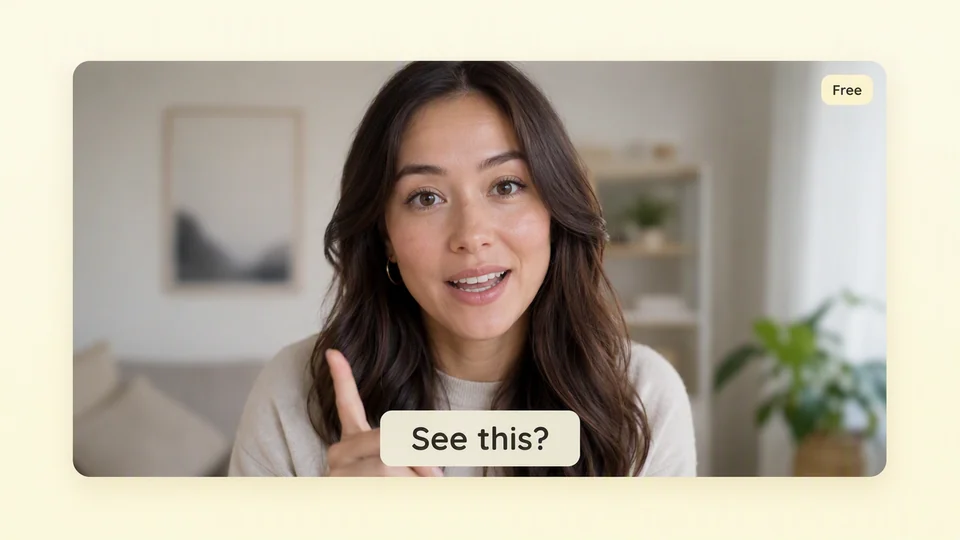
Do not bet the calendar on a blurry first pass. Use free AI subtitle generator credits on your own selling line, preview on mute, and scale only when the direction is right—no subscription required to start.
Create product clips built around clear benefits and promotional messages.
Develop visual hooks, titles, and short messages for mobile-first content.
Explore video concepts from a campaign headline or brand message.
Build simple promotional video ideas using product images and concise copy.
Experiment with dramatic titles, text-message reveals, and short narrative video concepts.
Not through the generation workflow described on this page. It creates video with prompted on-screen text rather than automatically transcribing existing footage into timed subtitles.
No. This page describes video generation with embedded on-screen text, not standalone SRT or VTT export.
Topview currently describes a free-credit starting option for generating video with on-screen text. You can begin with a short message, preview the generated result, and decide whether it meets your creative needs before expanding production.
Generation limits, available models, output settings, and credit usage may vary by account and plan. Review the current pricing information for exact usage conditions.
You can create short-form video concepts using the available portrait and other generation settings.
Check the final format and text placement for the intended platform before publishing.
Yes. Topview's publicly described workflow supports image references as part of AI video generation.
The resulting output should be reviewed for product appearance, visible text, and overall visual quality.
This page does not provide a dedicated timed-subtitle editor. You can describe your desired text appearance in the prompt and review the generated result.
Additional editing controls depend on the available workflow.
This page does not provide subtitle-track translation. For a different-language video version, explore Topview's available multilingual video workflow.
Yes. You can request an opening title, message, warning, or narrative clue as on-screen text in a generated drama scene.
For spoken dialogue that requires precise transcription and synchronization, use a dedicated subtitle workflow.
Results can vary by prompt, scene complexity, and generation model. Always check spelling, capitalization, placement, and readability before publishing.
Start with a headline, a product benefit, or a creative idea. Describe the scene, bring your message into the visual story, and generate a video with text people can see.